GeoConfig
Geolocation configuration for the background geolocation SDK.
GeoConfig controls how the SDK acquires, filters, and records device locations —
the accuracy tier, sampling rate, speed-based elasticity, stop-detection, platform
permissions, geofence proximity, and GPS noise filtering.
Contents
- Overview
- Accuracy and sampling
- Elasticity
- Motion detection
- Permissions
- Geofencing
- Filtering
- Examples
Overview
GeoConfig is supplied via Config.geolocation when calling
BackgroundGeolocation.ready or BackgroundGeolocation.setConfig.
| Category | Properties |
|---|---|
| Accuracy | desiredAccuracy, distanceFilter, locationUpdateInterval, fastestLocationUpdateInterval |
| Elasticity | disableElasticity, elasticityMultiplier |
| Motion detection | stationaryRadius, stopTimeout, stopAfterElapsedMinutes, disableStopDetection |
| Permissions | locationAuthorizationRequest, locationAuthorizationAlert, disableLocationAuthorizationAlert |
| Geofencing | geofenceProximityRadius, geofenceModeHighAccuracy, geofenceInitialTriggerEntry |
| Filtering | filter |
BackgroundGeolocation.ready(Config(
  geolocation: GeoConfig(
    desiredAccuracy: DesiredAccuracy.high,
    distanceFilter: 10.0,
    stopTimeout: 5,
    locationAuthorizationRequest: "Always"
  )
));
Accuracy and sampling
desiredAccuracy selects the location-provider tier. Only
DesiredAccuracy.High activates GPS — lower tiers use Wi-Fi and cell towers
and consume significantly less power.
distanceFilter sets the minimum horizontal movement in meters before a new
location is recorded. By default it scales automatically with speed — see
Elasticity.
On Android, locationUpdateInterval and fastestLocationUpdateInterval
replace distanceFilter for time-based sampling. Set distanceFilter to 0 to
activate these. deferTime batches location deliveries to reduce power
consumption.
useSignificantChangesOnly disables continuous tracking in favour of coarse
periodic updates (~500–1000 m) with dramatically lower power consumption.
Elasticity
By default, the SDK scales distanceFilter automatically as the device's speed
changes — recording fewer locations at highway speed and more at walking speed.
The formula rounds speed to the nearest 5 m/s then multiplies:
Set disableElasticity to true to use a fixed distanceFilter. Increase
elasticityMultiplier to space locations further apart at speed.
Motion detection
The SDK uses platform motion APIs to switch between moving and stationary states, turning location services off when the device is idle to save power.
stationaryRadius— minimum distance from the last stationary fix before continuous tracking re-engages.stopTimeout— minutes to wait after the activity recognition system reportsSTILLbefore transitioning to the stationary state.stopAfterElapsedMinutes— automatically stop tracking after N minutes.stopOnStationary— automatically call BackgroundGeolocation.stop when the device enters the stationary state.disableStopDetection— disable the motion-activity–based stop-detection system entirely.pausesLocationUpdatesAutomatically— iOS only whether iOS may automatically suspend location updates.
Permissions
locationAuthorizationRequest declares which authorization level your app
requires ("Always", "WhenInUse", or "Any"). The SDK guides users through the
platform permission flow and presents locationAuthorizationAlert when the
granted level falls below what was requested.
Set disableLocationAuthorizationAlert to true to suppress the SDK's
automatic alert and handle authorization changes manually via
BackgroundGeolocation.onProviderChange.
Geofencing
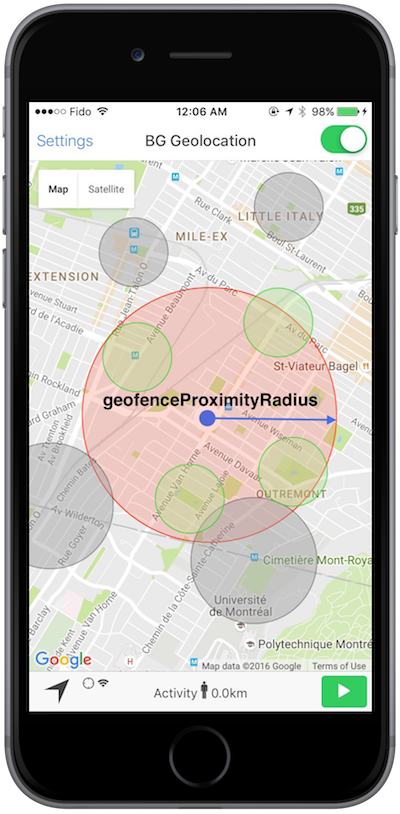
The SDK removes the platform limit on monitored geofences by maintaining a spatial
database and activating only the geofences within geofenceProximityRadius of
the current position. As the device moves, the active set updates automatically,
firing BackgroundGeolocation.onGeofencesChange.
geofenceModeHighAccuracy Android only runs the geofence-only service with a
foreground service and active location updates for near-instant transition detection.
geofenceInitialTriggerEntry controls whether a geofence fires an entry event
immediately if the device is already inside it when the geofence is registered.
Filtering
filter applies Kalman smoothing, rolling-window averaging, and accuracy and
speed constraints to raw platform samples before they are recorded. This reduces GPS
jitter and improves odometer accuracy. See LocationFilter for full
documentation.
Examples
BackgroundGeolocation.ready(Config(
  geolocation: GeoConfig(
    desiredAccuracy: DesiredAccuracy.high,
    distanceFilter: 10.0,
    stopTimeout: 5,
    showsBackgroundLocationIndicator: true
  )
));
These options now belong to this {@link GeoConfig} group
BackgroundGeolocation.ready(Config(
  geolocation: GeoConfig(
    geofenceProximityRadius: 1000,
    geofenceInitialTriggerEntry: true,
    geofenceModeHighAccuracy: true,
    desiredAccuracy: DesiredAccuracy.medium,
    locationUpdateInterval: 5000,
    distanceFilter: 0.0
  )
));
await BackgroundGeolocation.startGeofences();
High-accuracy tracking
BackgroundGeolocation.ready(Config(
  geolocation: GeoConfig(
    desiredAccuracy: DesiredAccuracy.high,
    distanceFilter: 10.0,
    stopTimeout: 5,
    showsBackgroundLocationIndicator: true
  )
));
Low-power significant-changes mode
Geofencing with high accuracy
BackgroundGeolocation.ready(Config(
  geolocation: GeoConfig(
    geofenceProximityRadius: 1000,
    geofenceInitialTriggerEntry: true,
    geofenceModeHighAccuracy: true,
    desiredAccuracy: DesiredAccuracy.medium,
    locationUpdateInterval: 5000,
    distanceFilter: 0.0
  )
));
await BackgroundGeolocation.startGeofences();
BackgroundGeolocation.ready(Config(
  geolocation: GeoConfig(
    geofenceProximityRadius: 1000,
    geofenceInitialTriggerEntry: true,
    geofenceModeHighAccuracy: true,
    desiredAccuracy: DesiredAccuracy.medium,
    locationUpdateInterval: 5000,
    distanceFilter: 0.0
  )
));
await BackgroundGeolocation.startGeofences();
Members
activityType
ActivityType? activityType
iOS only Specifies the Core Motion activity type used by iOS to optimize its internal stop-detection algorithm. Apple is intentionally vague about how this affects motion interpretation, but each activity type provides platform hints about the expected movement pattern (e.g., automotive navigation, fitness, airborne).
Available values are defined as constants on ActivityType.
| Name |
|---|
| ActivityType.Other |
| ActivityType.AutomotiveNavigation |
| ActivityType.Fitness |
| ActivityType.OtherNavigation |
| ActivityType.Airborne |
Note
For more details, see Apple's documentation: https://developer.apple.com/reference/corelocation/cllocationmanager/1620567-activitytype
BackgroundGeolocation.ready(Config(
  geolocation: GeoConfig(
    activityType: ActivityType.other,
  ),
));
allowIdenticalLocations
Android only Allows duplicate locations to be recorded when consecutive fixes are identical.
Defaults to false. By default, the SDK ignores a location that is identical to the
previous one. Set true to record every location regardless of duplication.
When a location is ignored, the log shows:
Note
Identical locations are common when transitioning from stationary → moving
(where a single fix is requested before continuous updates begin) or when
geolocation config parameters change (e.g., distanceFilter).
deferTime
Android only Sets the maximum wait time in milliseconds before batched location updates are delivered.
Defaults to 0 (no deferral). When set to a value at least 2× the
locationUpdateInterval, the system may delay delivery and send multiple
locations at once. This can reduce battery consumption and improve accuracy on
capable hardware.
Set this as large as your use-case allows if immediate location delivery is not required.
desiredAccuracy
DesiredAccuracy? desiredAccuracy
Specifies the desired accuracy of the geolocation system.
Defaults to DesiredAccuracy.High.
| Name | Location Providers | Description |
|---|---|---|
| DesiredAccuracy.Navigation | (iOS only) GPS + Wifi + Cellular | Highest power; highest accuracy |
| DesiredAccuracy.High | GPS + Wifi + Cellular | Highest power; highest accuracy |
| DesiredAccuracy.Medium | Wifi + Cellular | Medium power; Medium accuracy; |
| DesiredAccuracy.Low | Wifi (low power) + Cellular | Lower power; No GPS |
| DesiredAccuracy.VeryLow | Cellular only | Lowest power; lowest accuracy |
| DesiredAccuracy.Lowest | (iOS only) | Lowest power; lowest accuracy |
Note
Only DesiredAccuracy.High uses GPS. speed, heading, and altitude are
available only when GPS is active.
See also - Android location accuracy - iOS desiredAccuracy
BackgroundGeolocation.ready(Config(
  geolocation: GeoConfig(
    desiredAccuracy: DesiredAccuracy.high,
  )
));
disableElasticity
Disables automatic speed-based distanceFilter scaling.
Defaults to false. When false, the SDK automatically increases
distanceFilter as speed increases (and decreases it as speed decreases)
to record fewer locations and conserve energy.
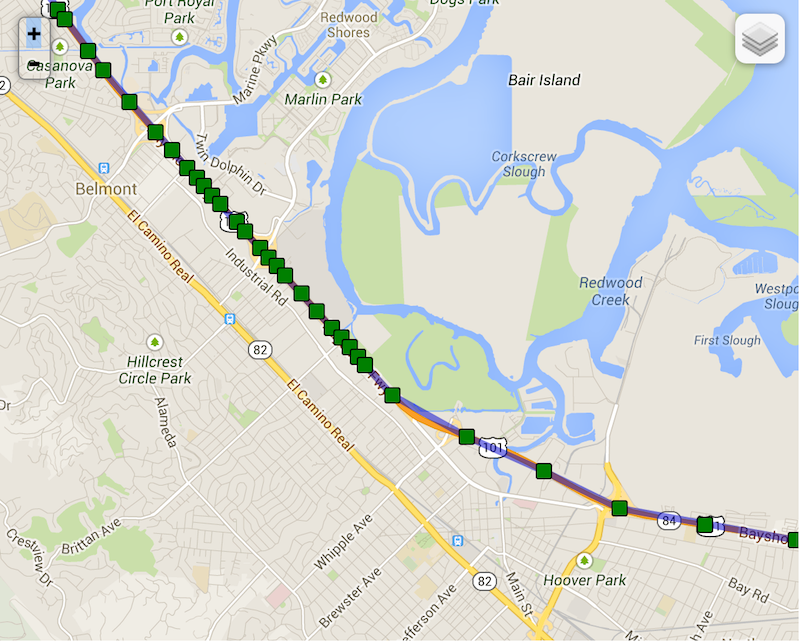
The following example shows elasticity in action on highway 101 towards San
Francisco — locations become compressed as distanceFilter decreases when the
driver slows into traffic.
See also
- elasticityMultiplier
- distanceFilter
disableLocationAuthorizationAlert
Disables the SDK's automatic alert when location authorization is insufficient.
Defaults to false. By default, the SDK shows a native alert directing the user to
the Settings screen when location services are disabled or the authorization level
falls below what locationAuthorizationRequest requires.
When set to true, you are responsible for handling authorization changes by
listening to BackgroundGeolocation.onProviderChange.
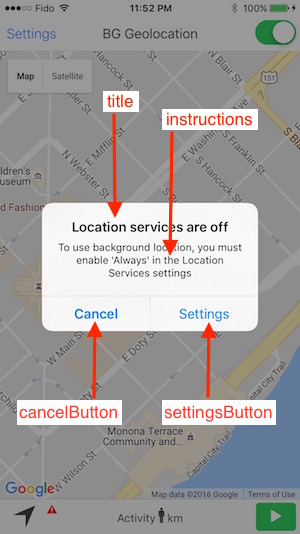
iOS
The alert dialog text can be customized via locationAuthorizationAlert.
Android
Android detects when the device's Settings → Location mode does not satisfy your location request. For example, if the user selects Battery Saving (Wi-Fi only) but you requested DesiredAccuracy.High (GPS), Android shows a resolution dialog asking the user to confirm the required change.
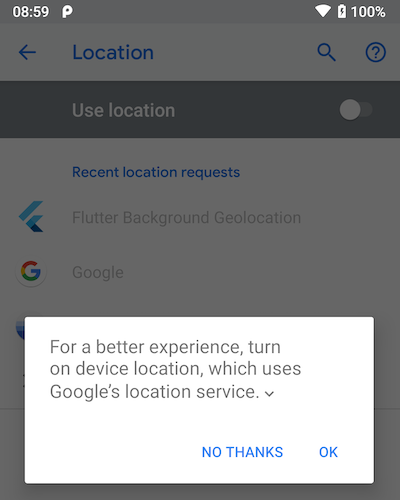
This dialog appears automatically on: - BackgroundGeolocation.onProviderChange - BackgroundGeolocation.start - BackgroundGeolocation.requestPermission
BackgroundGeolocation.onProviderChange((ProviderChangeEvent event) {
  print('[onProviderChange]  ${event}');

  if (!provider.enabled) {
    print("Please enable location services");
  }
});

BackgroundGeolocation.ready(Config(
  geolocation: GeoConfig(
    disableLocationAuthorizationAlert: true
  )
));
distanceFilter
The minimum distance (meters) a device must move horizontally before a new location is recorded.
Defaults to 10 meters.
By default, distanceFilter is elastically auto-scaled by the SDK: when speed
increases, distanceFilter increases; when speed decreases, so too does
distanceFilter.
Note
- To disable auto-scaling, set
disableElasticitytotrue. - To control the scale of the automatic calculation, see
elasticityMultiplier.
distanceFilter is auto-scaled by rounding speed to the nearest 5 m/s and
multiplying distanceFilter by the result:
At biking speed (7.7 m/s, distanceFilter: 30)
rounded_speed = round(7.7, 5)  => 10
multiplier = rounded_speed / 5  => 10 / 5 = 2
adjusted_distanceFilter = multiplier * distanceFilter
  => 2 * 30 = 60 meters
At highway speed (27 m/s, distanceFilter: 50)
rounded_speed = round(27, 5)    => 30
multiplier = rounded_speed / 5  => 30 / 5 = 6
adjusted_distanceFilter = multiplier * distanceFilter * elasticityMultiplier
  => 6 * 50 = 300 meters
The following example shows elasticity on highway 101 towards San Francisco as the
driver slows into traffic — locations compress as distanceFilter decreases.
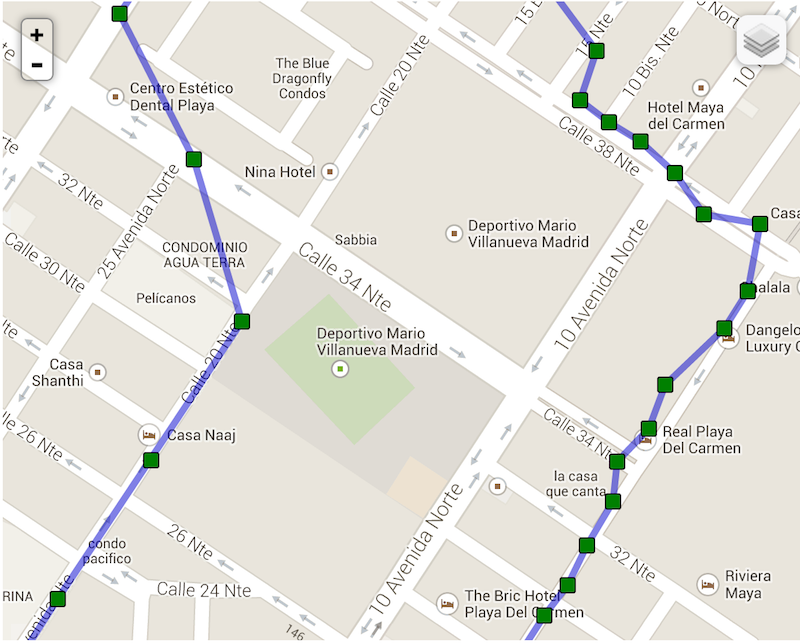
Compare background-geolocation at city scale. The left-hand track is from a cab-ride; the right-hand track is walking speed.
elasticityMultiplier
Controls the scale of automatic speed-based distanceFilter elasticity.
Defaults to 1.0. Increasing elasticityMultiplier results in fewer location
samples as speed increases. A value of 0 has the same effect as setting
disableElasticity to true.
enableTimestampMeta
Appends extra timestamp metadata to each recorded location, including system time.
Defaults to false. Some devices report GPS Location.timestamp values that
differ from the device's system clock. Enabling this option appends additional
timing fields to each location for debugging and cross-referencing.
Android
JSONObject timestampMeta = new JSONObject();
timestampMeta.put("time", mLocation.getTime());
if (Build.VERSION.SDK_INT >= Build.VERSION_CODES.JELLY_BEAN_MR1) {
    timestampMeta.put("systemClockElaspsedRealtime", SystemClock.elapsedRealtimeNanos()/1000000);
    timestampMeta.put("elapsedRealtime", mLocation.getElapsedRealtimeNanos()/1000000);
} else {
    timestampMeta.put("systemTime", System.currentTimeMillis());
}
iOS
long long systemTime = (long long)([[NSDate date] timeIntervalSince1970] * 1000.0);
long long locationTime = (long long)([_location.timestamp timeIntervalSince1970] * 1000.0);
long long uptime = (long long) [self.class uptime] * 1000;

return @{
    @"time": @(locationTime),
    @"systemTime": @(systemTime),
    @"systemClockElapsedRealtime": @(uptime)
};
fastestLocationUpdateInterval
Android only Sets the fastest interval for location updates, in milliseconds.
Defaults to -1 (not set). When other apps or system components trigger location
updates at a faster rate, the SDK receives those updates passively at up to this rate
without increasing power usage.
Unlike locationUpdateInterval, this value is a hard cap — the SDK never
receives updates faster than this interval.
Note
- A value of
0is allowed but not recommended, since some devices may deliver extremely rapid updates. - If
fastestLocationUpdateIntervalis slower thanlocationUpdateInterval, the effective fastest interval becomeslocationUpdateInterval.
BackgroundGeolocation.ready(Config(
  geolocation: GeoConfig(
    fastestLocationUpdateInterval: 5000 // Receive passive updates at most every 5 s
  )
));
See also - Android LocationRequest.setFastestInterval
filter
LocationFilter? filter
Defines how raw GPS samples are filtered, denoised, and smoothed before being recorded or used for odometer calculations.
LocationFilter is supplied via GeoConfig.filter and provides
fine-grained control over how the SDK handles noisy or inconsistent
location data from the underlying platform.
The native platform continuously produces raw CLLocation (iOS) or Location
(Android) samples. The filter applies Kalman filtering, rolling-window averaging,
and speed, distance, and accuracy constraints to produce smoother paths, reduce
jitter, and improve odometer stability.
Filtering flow

| Field | Description |
|---|---|
| LocationFilter.policy | Selects which filtering policy to apply. See LocationFilterPolicy. |
| LocationFilter.useKalman | Enables Kalman filtering of speed and position (default: true). |
| LocationFilter.kalmanDebug | Enables verbose Kalman diagnostic logs. |
| LocationFilter.kalmanProfile | Selects a Kalman tuning profile (see KalmanProfile). |
| LocationFilter.rollingWindow | Number of samples for rolling burst averaging. Larger values increase smoothness but reduce responsiveness. |
| LocationFilter.burstWindow | Duration of each averaging burst (seconds). Default: 10. |
| LocationFilter.maxBurstDistance | Maximum distance (meters) for samples to be included in the same burst window. Default: 300. |
| LocationFilter.trackingAccuracyThreshold | Minimum GPS horizontal accuracy (meters) required to accept a location. Default: 100. |
| LocationFilter.maxImpliedSpeed | Maximum implied speed (m/s) before rejecting a sample as unrealistic. Default: 60 (~216 km/h). |
| LocationFilter.filterDebug | Enables verbose logging of filter decisions (ACCEPTED, REJECTED, etc). |
| LocationFilter.odometerUseKalmanFilter | Applies Kalman smoothing to odometer calculations. |
| LocationFilter.odometerAccuracyThreshold | Maximum accuracy (meters) allowed for a sample to affect the odometer. Default: 100. |
Note
- Distances are in meters.
- Time fields are in milliseconds unless otherwise specified.
- Filtering affects recorded locations only — it does not influence real-time motion detection.
BackgroundGeolocation.ready(Config(
  geolocation: GeoConfig(
    filter: LocationFilter(
      policy: LocationFilterPolicy.adjust,
      useKalman: true,
      kalmanProfile: KalmanProfile.defaultProfile,
      trackingAccuracyThreshold: 100.0,
      odometerAccuracyThreshold: 20.0
    )
  )
));
BackgroundGeolocation.ready(Config(
  geolocation: GeoConfig(
    filter: LocationFilter(
      policy: LocationFilterPolicy.passThrough,
      useKalman: false
    )
  )
));
geofenceInitialTriggerEntry
Controls whether a geofence fires an entry event immediately if the device is already inside it when the geofence is registered.
Defaults to true. Set false to suppress the immediate entry trigger and wait
until the device exits and re-enters the geofence.
See also
- 📘 Geofencing Guide.
geofenceModeHighAccuracy
Android only Enables high-accuracy mode for geofence-only tracking.
Defaults to true. Runs BackgroundGeolocation.startGeofences with a
foreground service (and its corresponding persistent AppConfig.notification),
making geofence transition events significantly more responsive.
In high-accuracy mode, location-service options apply directly: - GeoConfig.desiredAccuracy (DesiredAccuracy.Medium works well) - GeoConfig.locationUpdateInterval - GeoConfig.distanceFilter - GeoConfig.deferTime
Warning
High-accuracy mode consumes more power. The more aggressively you configure the location-update params above, the more responsive geofence triggering will be — and the higher the power cost.
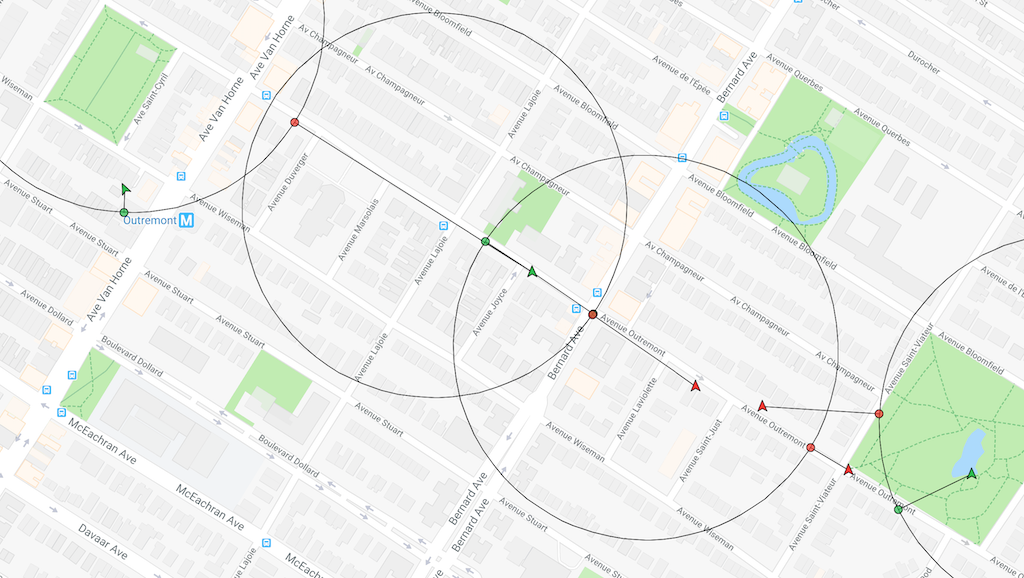
geofenceModeHighAccuracy: false — Transition events are delayed:
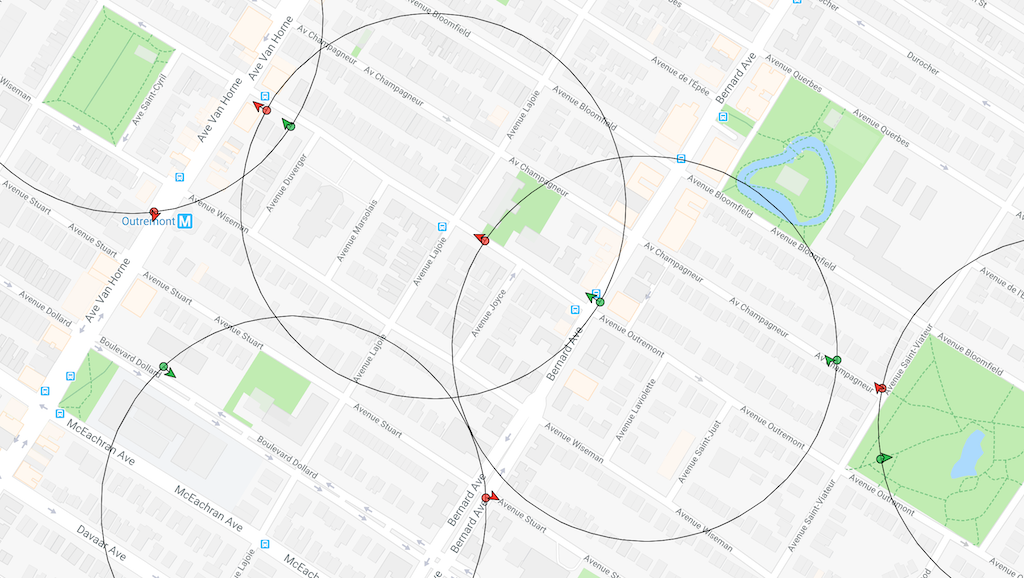
geofenceModeHighAccuracy: true — Transition events are nearly instantaneous:
BackgroundGeolocation.ready(Config(
  geolocation: GeoConfig(
    geofenceModeHighAccuracy: true,
    desiredAccuracy: DesiredAccuracy.medium,
    locationUpdateInterval: 5000,
    distanceFilter: 50.0,
  )
)).then((state) {
  BackgroundGeolocation.startGeofences();
});
geofenceProximityRadius
Defines the radius (meters) around the device used to query for geofences that should be actively monitored.
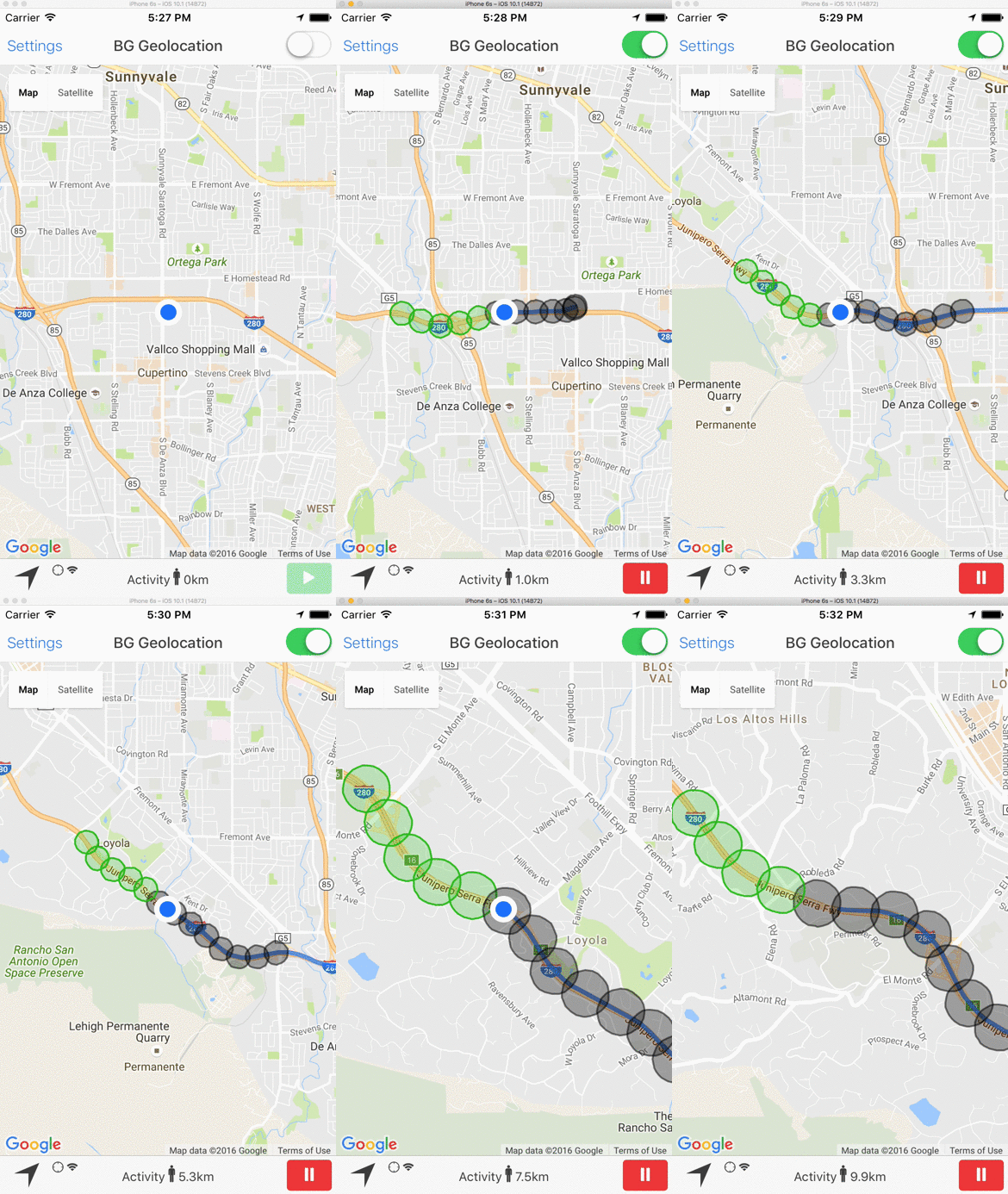
Mobile platforms allow only a limited number of concurrently monitored geofences (iOS: 20, Android: ~100). The SDK removes this limitation by storing all registered geofences in an internal database and activating only those within this radius. As the device moves, the active set updates automatically, firing BackgroundGeolocation.onGeofencesChange.
iOS
Defaults to 2000 meters (minimum 100 meters for reliable detection).
Android
Defaults to 1000 meters.
See also
- 📘 Geofencing Guide
- Animation of this behavior
locationAuthorizationAlert
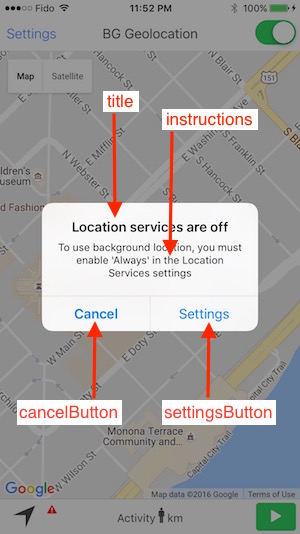
iOS only Customizes the text displayed in the SDK's location-authorization alert dialog. When locationAuthorizationRequest is "Always" or "WhenInUse" and the
user subsequently downgrades or disables location permission in iOS Settings, the SDK
presents an alert directing the user back to the Settings screen.
Supply an object with all required fields to override the default strings:
Warning
You must supply all fields — not just a subset. Omitting any field will cause the alert to display an empty or unexpected string.
BackgroundGeolocation.ready(Config(
  geolocation: GeoConfig(
    locationAuthorizationAlert: LocationAuthorizationAlert(
      titleWhenNotEnabled: "Location services are not enabled",
      titleWhenOff: "Location services are OFF",
      instructions:
        "Please enable 'Always' in Location Services to allow background tracking.",
      cancelButton: "Cancel",
      settingsButton: "Open Settings"
    )
  )
));
locationAuthorizationRequest
Declares the location authorization level the app requires from the user.
Defaults to "Always". Valid values are:
- "Always" — background and foreground location access
- "WhenInUse" — foreground location access only
- "Any" — accept whichever level the user grants
If you request "Always" but the user grants only When-In-Use, the SDK displays
locationAuthorizationAlert unless suppressed via
disableLocationAuthorizationAlert.
iOS
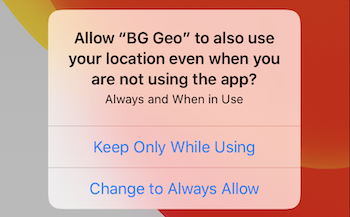
iOS 13+ no longer grants Always Allow on the initial dialog. After granting While Using the App, iOS may later prompt the user to upgrade.
1. When locationAuthorizationRequest: "Always"
The user first sees the While-Using dialog, then an upgrade prompt for Always Allow:

If the user denies Always, the SDK displays locationAuthorizationAlert
(unless disabled):
2. When locationAuthorizationRequest: "WhenInUse"
Only the initial dialog appears:
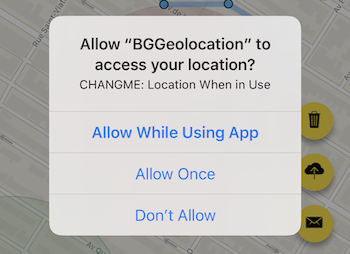
Upgrading the config to "Always" later triggers the upgrade prompt immediately:
3. When locationAuthorizationRequest: "Any"
The SDK requests Always internally but accepts either result. iOS may show the upgrade prompt spontaneously later:
// Start with When-In-Use
BackgroundGeolocation.ready(Config(
  geolocation: GeoConfig( locationAuthorizationRequest: "WhenInUse" )
));

Future<void> onClickStartTracking() async {
  await BackgroundGeolocation.start();

  // Upgrade to Always at any time.
  BackgroundGeolocation.setConfig(Config(
    geolocation: GeoConfig( locationAuthorizationRequest: "Always" )
  ));
}
Android
Android 11+ (targetSdkVersion ≥ 30)
Android 11 removes Allow all the time from the initial dialog. Apps must present a custom rationale UI before navigating the user to the system Location Permissions screen. The SDK automatically shows AppConfig.backgroundPermissionRationale when configured.
The rationale dialog is shown only once unless the user resets permissions.

BackgroundGeolocation.ready(Config(
  geolocation: GeoConfig( locationAuthorizationRequest: "Always" ),
  app: AppConfig(
    backgroundPermissionRationale: PermissionRationale(
      title: "Allow access to this device's location in the background?",
      message: "To track your trips, please enable 'Allow all the time' location permission.",
      positiveAction: "Change to Allow all the time",
      negativeAction: "Cancel"
    )
  )
));
1. When locationAuthorizationRequest: "Always"
After granting While Using, Android immediately displays the rationale dialog:
2. When locationAuthorizationRequest: "WhenInUse"
Only the initial system dialog appears:
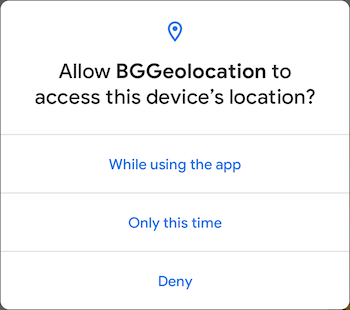
Upgrading to "Always" later triggers the rationale dialog:

3. When locationAuthorizationRequest: "Any"
Treated the same as "Always".
locationUpdateInterval
Android only Sets the desired interval for active location updates, in milliseconds.
Defaults to 1000 ms. The system honors this interval on a best-effort basis — updates
may arrive slower (no providers available), faster (another app requests faster
updates), or not at all (permission or system constraints).
Apps with only coarse location permission may have this interval silently throttled.
Warning
locationUpdateInterval is ignored when distanceFilter is greater than 0.
Set distanceFilter to 0 to activate time-based sampling.
BackgroundGeolocation.ready(Config(
  geolocation: GeoConfig(
    distanceFilter: 0.0,           // Required — otherwise this field is ignored.
    locationUpdateInterval: 5000 // Request a fix every ~5 seconds
  )
));
See also - Android LocationRequest.setInterval
pausesLocationUpdatesAutomatically
iOS only Prevents the iOS location API from automatically pausing location updates. When set to false, iOS location services never turn off automatically. By default
(true), the SDK manages this automatically — turning location services off after
stopTimeout minutes of inactivity.
Setting this to false forces:
- ActivityConfig.disableStopDetection to true automatically
- You to manage tracking lifetime manually
Warning
Setting this to false can cause severe battery drain. Only use this for
highly specialised use-cases where you fully control tracking lifecycle (for
example, a workout app that calls BackgroundGeolocation.changePace directly).
AppConfig.preventSuspend will no longer function in this mode.
showsBackgroundLocationIndicator
iOS only Controls whether the status bar indicator appears when location services are active
in the background with Always authorization. Defaults to true. When true, iOS displays a blue bar or pill in the status bar
while the app uses location in the background. Users can tap the indicator to return
to your app.
This property affects only apps with Always authorization. For apps with
When-In-Use authorization, iOS always changes the status bar appearance when
location services are active in the background.
stationaryRadius
The minimum distance the device must move beyond the stationary location before aggressive background-tracking re-engages.
iOS
Defaults to 25 meters. In practice, iOS requires approximately 200 meters
of movement before triggering exit from the stationary state — the platform does not
detect departure at the exact radius boundary.
Android
Defaults to 150 meters (minimum 25, maximum 1000).
Warning
Setting stationaryRadius: 0 has no effect — a minimum of 25 meters is enforced.
In practice, the native API does not respond until the device has moved approximately
200 meters.
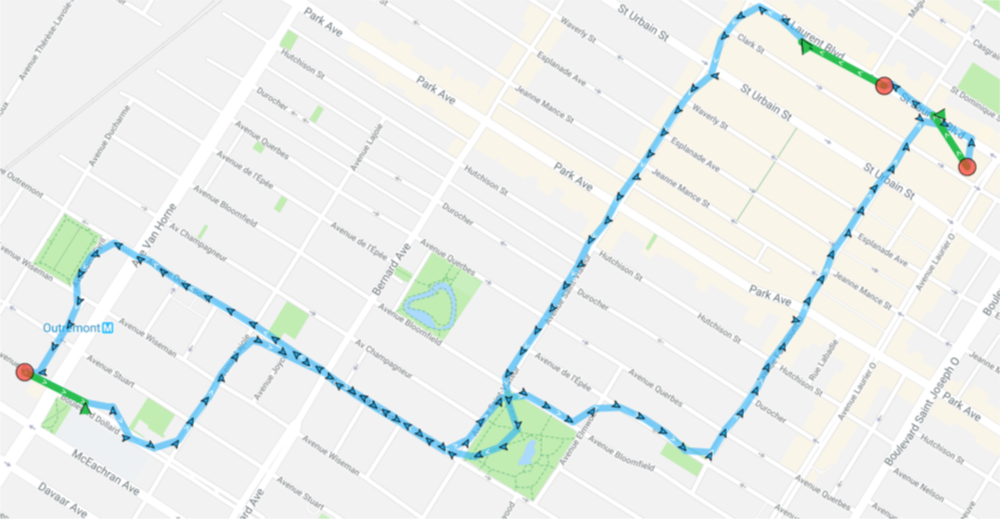
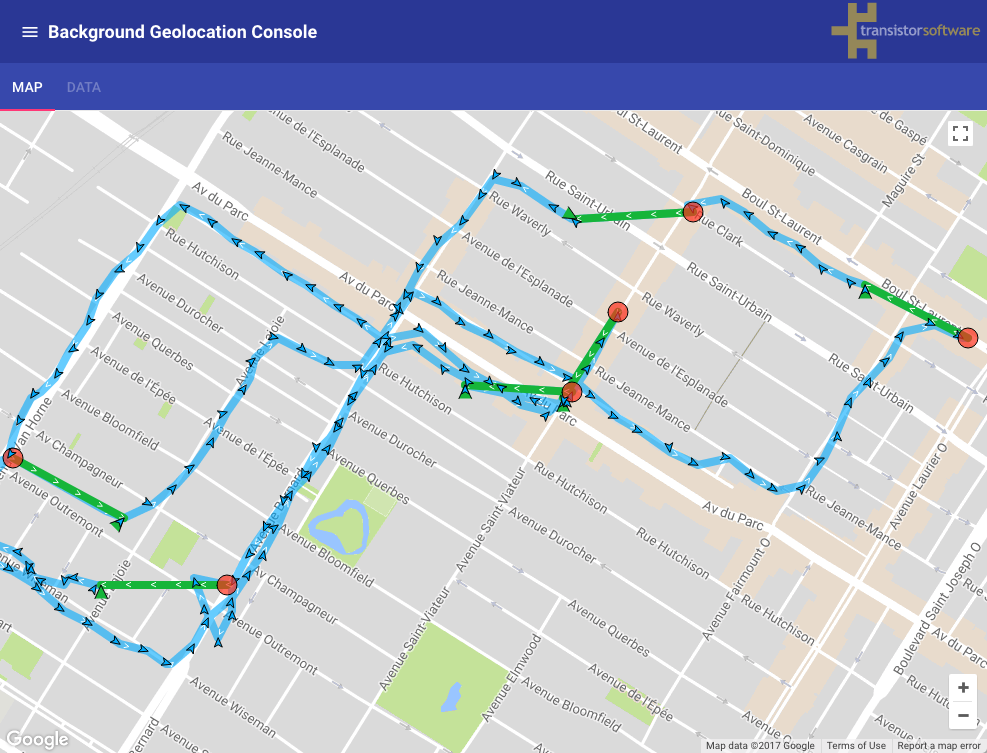
The following image shows the typical distance iOS requires to detect exit from the stationary radius: - Green polylines: transition from stationary → moving (~200 meters). - Red circles: locations where the SDK entered the stationary state.
See also - 📘 Philosophy of Operation
stopAfterElapsedMinutes
Automatically stops tracking after the specified number of minutes.
Disabled by default. When set, the SDK automatically calls BackgroundGeolocation.stop after this many minutes have elapsed since BackgroundGeolocation.start was called.
BackgroundGeolocation.ready(Config(
  geolocation: GeoConfig(
    stopAfterElapsedMinutes: 30
  )
)).then((state) {
  BackgroundGeolocation.start();  // SDK will automatically stop in 30 minutes
});
stopTimeout
Minutes to wait in the moving state with no detected movement before transitioning to the stationary state.
Defaults to 5 minutes.
When in the moving state, the SDK waits this many minutes after the activity
recognition system reports STILL before turning off location services. A common
use-case is to delay GPS OFF while a car is stopped at a traffic light.
Warning
Setting a very long stopTimeout keeps location services active while the device is
potentially motionless for extended periods, which may significantly impact battery
life.
See also - BackgroundGeolocation.onMotionChange - 📘 Philosophy of Operation
useSignificantChangesOnly
Disables continuous background tracking in favour of periodic, coarse location updates.
Defaults to false. When true, a location is recorded only every 500–1000 meters
(higher in non-urban environments, depending on cell tower spacing). Many
configuration parameters have no effect in this mode, including distanceFilter,
stationaryRadius, and activityType.
Using useSignificantChangesOnly: true provides significant power savings at the
expense of fewer recorded locations.
iOS
Engages the iOS Significant Location Changes API, delivering updates every 500–1000 meters.
Note
If Apple has rejected your app for using UIBackgroundMode: "location", this mode
can be a viable alternative.
Android
A location is recorded several times per hour while the device is in the moving state. No foreground service is run (and no persistent NotificationConfig notification is shown).
Example 1 — useSignificantChangesOnly: true:
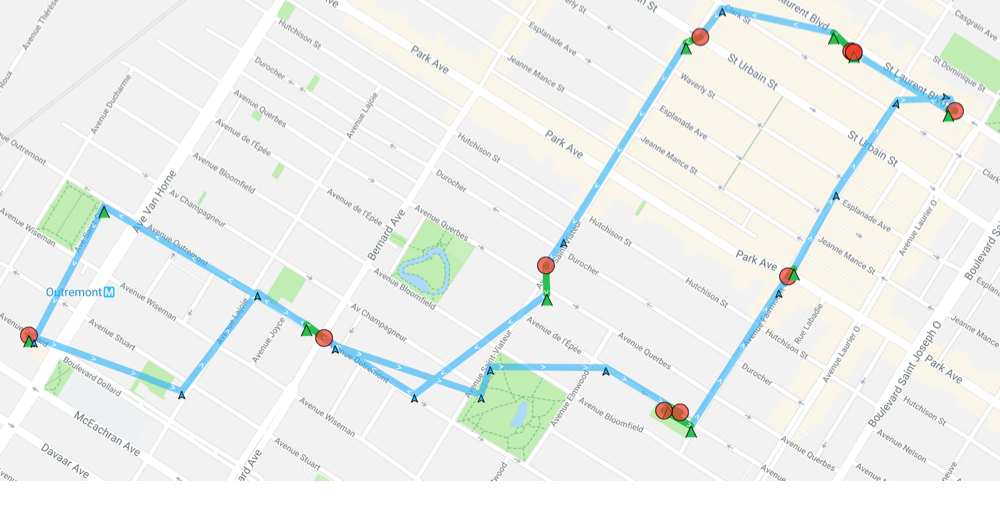
Example 2 — useSignificantChangesOnly: false (default):