BackgroundGeolocation
Primary SDK API — the single entry point for all geolocation, geofencing, HTTP sync, and configuration operations.
Contents
Overview
The SDK operates around a motion-based state machine: it tracks aggressively while the device is moving and pauses location services when stationary, delivering high-quality background tracking with minimal battery impact.
| Area | Key methods |
|---|---|
| Lifecycle | ready, start, stop, setConfig, reset |
| Location | getCurrentPosition, watchPosition, getOdometer |
| Geofencing | addGeofence, startGeofences, onGeofence |
| Events | onLocation, onMotionChange, onHttp, onProviderChange |
| Persistence | getLocations, getCount, sync, destroyLocations |
| Background tasks | startBackgroundTask, stopBackgroundTask |
Lifecycle
Think of the SDK like a stereo receiver:
-
Wiring the speakers — Register event listeners (
onLocation,onGeofence, etc.) before callingready. The SDK buffers events untilreadyresolves, so listeners registered afterward may miss them. You do not need to remove listeners when you callstop— the SDK simply stops emitting events when it isn't running. -
Plugging in the power cord —
readyinitializes the SDK, restores persisted state, and applies your configuration. Call it once per launch, before any method that acquires a location or requests permissions. Your config is not applied untilreadyresolves. -
The power button —
startandstopbegin and halt location tracking. The SDK persists its enabled state across launches. If the app is terminated while tracking is active, the next call toreadywill automatically resume tracking — you do not need to callstartagain.
Always call ready on every launch — no exceptions. The SDK buffers all events from the
moment the app starts, and holds them until ready is called. If your app launches and
never calls ready, the SDK sits silently waiting: no events fire, no locations are
recorded, no uploads are attempted. It does not matter whether tracking was already active
from a previous session — ready is the signal that tells the SDK your app is alive and
listening. This is why the method is named ready.
Calling methods before ready resolves is perfectly fine, provided they do not request
a location or trigger a permission dialog. Methods that only read from the SDK's SQLite
database are safe — for example getState, getLocations, getGeofences,
removeGeofences. Avoid start, requestPermission, getCurrentPosition, and
watchPosition until after ready resolves. The SDK defaults apply until your config
arrives — calling a permission-sensitive method too early will use those defaults, not
your configured values.
Configuration
The SDK uses a compound-configuration model. Options are grouped into typed sub-interfaces (GeoConfig, HttpConfig, AppConfig, etc.) passed as a single Config object. All SDK constants are available as strongly-typed enum namespaces on the default export:
// Register event-listeners before calling .ready()
BackgroundGeolocation.onLocation((Location location) {
  print('[onLocation] ${location}');
});

BackgroundGeolocation.ready(Config(
  geolocation: GeoConfig(
    desiredAccuracy: DesiredAccuracy.high,
    distanceFilter: 20.0
  ),
  http: HttpConfig(
    url: "https://example.com/locations",
    autoSync: true
  ),
  persistence: PersistenceConfig(
    maxDaysToPersist: 7
  )
));
Events
Each onX method returns a Subscription that must be removed when
no longer needed:
These can also be imported individually
BackgroundGeolocation.onLocation((Location location) {
  print('New location: ${location}');
});

BackgroundGeolocation.onMotionChange((MotionChangeEvent event) {
  print('Device is moving? ${event.isMoving}');
});
Examples
final state = await BackgroundGeolocation.ready(Config(
  geolocation: GeoConfig( distanceFilter: 10.0 ),
  http: HttpConfig( url: "https://example.com/locations", autoSync: true )
));

if (!state.enabled) {
  await BackgroundGeolocation.start();
}
Compound configuration
// Register event-listeners before calling .ready()
BackgroundGeolocation.onLocation((Location location) {
  print('[onLocation] ${location}');
});

BackgroundGeolocation.ready(Config(
  geolocation: GeoConfig(
    desiredAccuracy: DesiredAccuracy.high,
    distanceFilter: 20.0
  ),
  http: HttpConfig(
    url: "https://example.com/locations",
    autoSync: true
  ),
  persistence: PersistenceConfig(
    maxDaysToPersist: 7
  )
));
Event listeners
BackgroundGeolocation.onLocation((Location location) {
  print('New location: ${location}');
});

BackgroundGeolocation.onMotionChange((MotionChangeEvent event) {
  print('Device is moving? ${event.isMoving}');
});
Removing event listeners
Getting started
final state = await BackgroundGeolocation.ready(Config(
  geolocation: GeoConfig( distanceFilter: 10.0 ),
  http: HttpConfig( url: "https://example.com/locations", autoSync: true )
));

if (!state.enabled) {
  await BackgroundGeolocation.start();
}
Events
onActivityChange
Subscribe to motion-activity changes.
Fires each time the activity-recognition system reports a new activity
(still, on_foot, in_vehicle, on_bicycle, running).
Android
MotionActivityEvent.confidence always reports 100.
BackgroundGeolocation.onActivityChange((ActivityChangeEvent event) {
  print('[onActivityChange] ${event}');
});
activitychange
onAuthorization
static void onAuthorization(Function(AuthorizationEvent) callback)
Subscribe to Config.authorization events.
Fires when AuthorizationConfig.refreshUrl responds, either
successfully or not. On success, AuthorizationEvent.success is
true and AuthorizationEvent.response contains the decoded JSON
response. On failure, AuthorizationEvent.error contains the error
message.
BackgroundGeolocation.onAuthorization((Authorization event) {
  print("[authorization] $event");

  if (event.success) {
    print("- Authorization response: ${event.response}");
  } else {
    print("- Authorization error: ${event.message}");
  }
});
authorization
onConnectivityChange
static void onConnectivityChange(Function(ConnectivityChangeEvent) callback)
Subscribe to network connectivity changes.
Fires when the device's network connectivity transitions between connected
and disconnected. By default, the SDK also fires this event at
start time with the current connectivity state. When connectivity
is restored and the SDK has queued locations, it automatically initiates
an upload to HttpConfig.url.
BackgroundGeolocation.oConnectivityChange((ConnectivityChangeEvent event) {
  print('[onConnectivityChange] ${event}');
});
connectivitychange
onEnabledChange
Subscribe to changes in plugin State.enabled.
Fires when State.enabled changes. Calling start or
stop triggers this event.
BackgroundGeolocation.onEnabledChange'((bool isEnabled) {
  print('[onEnabledChanged] isEnabled? ${isEnabled}');
});
enabledchange
onGeofence
static void onGeofence(Function(GeofenceEvent) callback)
Subscribe to geofence transition events.
Fires when any monitored geofence crossing occurs.
See also
- 📘 Geofencing Guide
geofence
onGeofencesChange
static void onGeofencesChange(Function(GeofencesChangeEvent) callback)
Subscribe to changes in the set of actively monitored geofences.
Fires when the SDK's active geofence set changes. The SDK can monitor any number of geofences in its database — even thousands — despite native platform limits (20 for iOS; 100 for Android). It achieves this with a geospatial query that activates only the geofences nearest to the device's current location (see GeoConfig.geofenceProximityRadius). When the device is moving, the query runs periodically and the active set may change — that change triggers this event.
See also
- 📘 Geofencing Guide
BackgroundGeolocation.onGeofencesChange((GeofencesChangeEvent event) {
  List<String> on = event.on;     //<-- new geofences activated.
  List<Geofence> off = event.off; //<-- geofences that were just de-activated.

  // Create map circles
  on.forEach((Geofence geofence) {
    createGeofenceMarker(geofence)
  });

  // Remove map circles
  off.forEach((String identifier) {
    removeGeofenceMarker(identifier);
  }
});
geofenceschange
onHeartbeat
static void onHeartbeat(Function(HeartbeatEvent) callback)
Subscribe to periodic heartbeat events.
Fires at each AppConfig.heartbeatInterval while the device is in
the stationary state. On iOS, AppConfig.preventSuspend must
also be true to receive heartbeats in the background.
Note
The Location provided by the HeartbeatEvent is only the
last-known location — the heartbeat does not engage location services. To
fetch a fresh location inside your callback, call getCurrentPosition.
BackgroundGeolocation.ready(Config(
  heartbeatInterval: 60
));

BackgroundGeolocation.onHeartbeat((HeartbeatEvent event) {
  print('[onHeartbeat] ${event}');

  // You could request a new location if you wish.
  BackgroundGeolocation.getCurrentPosition(
    samples: 1,
    persist: true
  ).then((Location location) {
    print('[getCurrentPosition] ${location}');
  });
})
heartbeat
onHttp
static void onHttp(Function(HttpEvent) callback)
Subscribe to HTTP responses from your server HttpConfig.url.
See also
- HTTP Guide
BackgroundGeolocation.onHttp((HttpEvent event) {
  int status = response.status;
  bool success = response.success;
  String responseText = response.responseText;
  print('[onHttp] status: ${status}, success? ${success}, responseText: ${responseText}');
});
http
onLocation
static void onLocation(Function(Location) success, [Function(LocationError)? failure])
Subscribe to location events.
Every location recorded by the SDK is delivered to your callback, including
locations from onMotionChange, getCurrentPosition, and
watchPosition.
Error Codes
If the native location API fails, the error callback receives a
LocationError code.
Note
During onMotionChange and getCurrentPosition, the SDK
requests multiple location samples to find the most accurate fix. These
intermediate samples are not persisted, but are delivered to this
callback with Location.sample set to true. Filter out sample
locations before manually posting to your server.
BackgroundGeolocation.onLocation((Location location) {
  print('[onLocation] success: ${location}');
}, (LocationError error) {
  print('[onLocation] ERROR: ${error}');
});
location
onMotionChange
static void onMotionChange(Function(Location) callback)
Subscribe to motion-change events.
Fires each time the device transitions between the moving and stationary states.
Warning
When a motion-change event fires, HttpConfig.autoSyncThreshold is ignored — all queued locations are uploaded immediately. The SDK flushes eagerly before going dormant (moving→stationary) and immediately after waking up (stationary→moving).
See also - GeoConfig.stopTimeout
BackgroundGeolocation.onMotionChange((Location location) {
  if (location.isMoving) {
     print('[onMotionChange] Device has just started MOVING ${location}');
  } else {
     print('[onMotionChange] Device has just STOPPED:  ${location});
  }
});
motionchange
onNotificationAction
Android only Subscribe to button-click actions on the Android foreground-service notification.
Fires when the user taps a button defined in a custom NotificationConfig.layout.
BackgroundGeolocation.ready(Config(
  notification: Notification(
    actions: [  // <-- register button listeners
      "notificationButtonFoo",
      "notificationButtonBar"
    ]
  )
));

// Listen to custom button clicks:
BackgroundGeolocation.onNotificationAction((String buttonId) {
  print("[onNotificationAction] - ${buttonId}");
  switch(buttonId) {
    case 'notificationButtonFoo':
      break;
    case 'notificationButtonBar':
      break;
  }
});
onPowerSaveChange
Subscribe to OS power-saving mode changes.
Fires when the operating system's power-saving mode is enabled or disabled. Power-saving mode can throttle background services such as GPS and HTTP uploads.
See also
- isPowerSaveMode
iOS
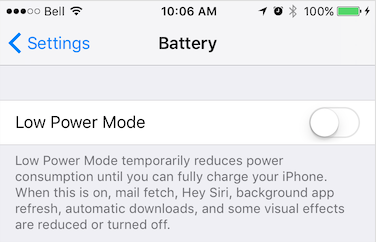
Power Saving mode is enabled manually in Settings → Battery or via an automatic OS prompt.
Android
Battery Saver is enabled manually in Settings → Battery → Battery Saver or automatically when the battery drops below a configured threshold.

BackgroundGeolocation.onPowerSaveChange((bool isPowerSaveMode) {
  print('[onPowerSaveChange: ${isPowerSaveMode}');
});
powersavechange
onProviderChange
static void onProviderChange(Function(ProviderChangeEvent) callback)
Subscribe to location-services authorization changes.
Fires whenever the state of the device's location-services authorization
changes (e.g. GPS enabled, WiFi-only, permission revoked). The SDK also
fires this event immediately after ready completes, so you always
receive the current authorization state on each app launch.
See also
- getProviderState
BackgroundGeolocation.onProviderChange((ProviderChangeEvent event) {
  print('[onProviderChange: ${event}');

  switch(provider.status) {
    case ProviderChangeEvent.AUTHORIZATION_STATUS_DENIED:
      // Android & iOS
      print('- Location authorization denied');
      break;
    case ProviderChangeEvent.AUTHORIZATION_STATUS_ALWAYS:
      // Android & iOS
      console.log('- Location always granted');
      break;
    case ProviderChangeEvent.AUTHORIZATION_STATUS_WHEN_IN_USE:
      // iOS only
      console.log('- Location WhenInUse granted');
      break;
  }
});
providerchange
onSchedule
static void onSchedule(Function(State) callback)
Subscribe to AppConfig.schedule events.
Fires each time a schedule event activates or deactivates tracking.
Check state.enabled in your callback to determine whether tracking
was started or stopped.
BackgroundGeolocation.onSchedule((State state) {
  if (state.enabled) {
    print('[onSchedule] scheduled start tracking');
  } else {
    print('[onSchedule] scheduled stop tracking');
  }
});
schedule
Methods
changePace
Manually toggle the SDK's motion state between stationary and moving.
Passing true immediately engages location services and begins tracking,
bypassing stationary monitoring. Passing false turns off location
services and returns the SDK to the stationary state.
Use this in workout-style apps where you want explicit start/stop control independent of the device's motion sensors.
BackgroundGeolocation.changePace(true);  // <-- Location-services ON ("moving" state)
BackgroundGeolocation.changePace(false); // <-- Location-services OFF ("stationary" state)
getCurrentPosition
static Future<Location> getCurrentPosition(
Retrieve the current Location.
Instructs the SDK to fetch a single location at maximum power and
accuracy. The location is persisted to SQLite and posted to
HttpConfig.url just like any other recorded location. If an error
occurs, the promise rejects with a LocationError.
Options
See CurrentPositionRequest.
Error Codes
See LocationError.
Note
The SDK requests multiple location samples internally to find the best
fix. All intermediate samples are delivered to onLocation with
Location.sample set to true. Filter these out if you are
manually posting locations to your server.
Location location = await BackgroundGeolocation.getCurrentPosition(
  timeout: 30,          // 30 second timeout to fetch location
  maximumAge: 5000,     // Accept the last-known-location if not older than 5000 ms.
  desiredAccuracy: 10,  // Try to fetch a location with an accuracy of `10` meters.
  samples: 3,           // How many location samples to attempt.
  extras: {             // [Optional] Attach your own custom meta-data to this location.  This meta-data will be persisted to SQLite and POSTed to your server
    "foo": "bar"
  }
});
odometer
Retrieve the current odometer reading in meters.
The SDK continuously accumulates distance traveled between recorded locations.
Warning
Odometer accuracy depends on location accuracy. Noisy or inaccurate locations introduce error into accumulated distance. Use LocationFilter.odometerAccuracyThreshold to filter low-accuracy samples from odometer calculations.
See also
- LocationFilter.odometerAccuracyThreshold
- resetOdometer / setOdometer
ready
static Future<State> ready(Configconfig)
Signal to the SDK that your app is launched and ready, supplying the default Config.
Call ready exactly once per app launch, before calling start.
The SDK applies your configuration, restores persisted state, and prepares
for tracking. On subsequent launches after first install, it loads the
persisted configuration and merges your supplied Config on top.
See Config.reset for finer control over this behaviour.
Warning
Call ready once per app launch from your application root — not inside a
component or behind a UI action. On iOS, the OS can relaunch your app in
the background when the device starts moving; if ready is not called in
that path, tracking will not resume.
See also
- Config.reset
- setConfig
BackgroundGeolocation.ready(Config(
  desiredAccuracy: Config.DESIRED_ACCURACY_HIGH,
  distanceFilter: 10,
  stopOnTerminate: false,
  startOnBoot: true,
  url: 'http://your.server.com',
  headers: {
    'my-auth-token': 'secret-token'
  }
)).then((State state) {
  print('[ready] success: ${state}');
});
BackgroundGeolocation.reset();
// Reset to documented default-values with overrides
BackgroundGeolocation.reset(Config(
  distanceFilter:  10
));
registerHeadlessTask
static Future<bool> registerHeadlessTask( void Function(HeadlessEvent) callback)
Android only Registers a headless-task callback for Android background events when the
app has been terminated with AppConfig.stopOnTerminate:false.
The callback receives a HeadlessEvent with a name (event name)
and params (event data).
Warning
You must call registerHeadlessTask in your application root file (e.g.
index.js), not inside a component or behind a UI action.
Warning
Your function must be declared async. Await all work inside it — the
headless task is automatically terminated after the last line executes.
Note
Javascript headless callbacks are not supported by Cordova or Capacitor.
Debugging
While implementing your headless task, observe Android logs via:
See also - 📘 Android Headless Mode - AppConfig.enableHeadless
import 'package:flutter_background_geolocation/flutter_background_geolocation.dart' as bg;

/// Receives all events from BackgroundGeolocation while app is terminated:
void headlessTask(HeadlessEvent headlessEvent) async {
  print('[HeadlessTask]: ${headlessEvent}');

  // Implement a 'case' for only those events you're interested in.
  switch(headlessEvent.name) {
    case Event.TERMINATE:
      State state = headlessEvent.event;
      print('- State: ${state}');
      break;
    case Event.HEARTBEAT:
      HeartbeatEvent event = headlessEvent.event;
      print('- HeartbeatEvent: ${event}');
      break;
    case Event.LOCATION:
      Location location = headlessEvent.event;
      print('- Location: ${location}');
      break;
    case Event.MOTIONCHANGE:
      Location location = headlessEvent.event;
      print('- Location: ${location}');
      break;
    case Event.GEOFENCE:
      GeofenceEvent geofenceEvent = headlessEvent.event;
      print('- GeofenceEvent: ${geofenceEvent}');
      break;
    case Event.GEOFENCESCHANGE:
      GeofencesChangeEvent event = headlessEvent.event;
      print('- GeofencesChangeEvent: ${event}');
      break;
    case Event.SCHEDULE:
      State state = headlessEvent.event;
      print('- State: ${state}');
      break;
    case Event.ACTIVITYCHANGE:
      ActivityChangeEvent event = headlessEvent.event;
      print('ActivityChangeEvent: ${event}');
      break;
    case Event.HTTP:
      HttpEvent response = headlessEvent.event;
      print('HttpEvent: ${response}');
      break;
    case Event.POWERSAVECHANGE:
      bool enabled = headlessEvent.event;
      print('ProviderChangeEvent: ${enabled}');
      break;
    case Event.CONNECTIVITYCHANGE:
      ConnectivityChangeEvent event = headlessEvent.event;
      print('ConnectivityChangeEvent: ${event}');
      break;
    case Event.ENABLEDCHANGE:
      bool enabled = headlessEvent.event;
      print('EnabledChangeEvent: ${enabled}');
      break;
  }
}

void main() {
  runApp(HelloWorld());

  // Register your headlessTask:
  BackgroundGeolocation.registerHeadlessTask(headlessTask);
}
removeListeners
Remove all event listeners.
Calls Subscription.remove on all active subscriptions.
reset
static Future<State> reset([Config? config])
Reset the SDK configuration to documented default values.
If an optional Config is provided, it is applied after the reset.
BackgroundGeolocation.reset();
// Reset to default values with overrides
BackgroundGeolocation.reset(Config(
  geolocation: GeoConfig( distanceFilter: 10.0 )
));
setConfig
static Future<State> setConfig(Configconfig)
Update the SDK's Config at runtime.
The supplied Config is merged into the current configuration and
applied immediately. Use this after ready has been called to
change settings dynamically.
BackgroundGeolocation.setConfig(Config(
  desiredAccuracy: Config.DESIRED_ACCURACY_HIGH,
  distanceFilter: 100.0,
  stopOnTerminate: false,
  startOnBoot: true
)).then((State state) {
  print('[setConfig] success: ${state}');
})
setOdometer
static Future<Location> setOdometer(double value)
Set the odometer to an arbitrary value.
Internally performs a getCurrentPosition to record the exact
location where the odometer was set.
BackgroundGeolocation.setOdometer(1234.56).then((Location location) {
  // This is the location where odometer was set at.
  print('[setOdometer] success: ${location}');
});
start
static Future<State> start()
Enable location and geofence tracking.
This is the SDK's power ON switch. The SDK enters its stationary state, acquires an initial location, then turns off location services until motion is detected. On Android, the Activity Recognition System monitors for motion; on iOS, a stationary geofence is created around the current location.
Note
If a AppConfig.schedule is configured, start overrides the
schedule and begins tracking immediately.
See also
- stop
- startGeofences
startGeofences
static Future<State> startGeofences()
Switch to geofences-only tracking mode.
In this mode no active location tracking occurs — only geofences are
monitored. Use the usual stop method to exit geofences-only mode.
start and startGeofences are mutually exclusive — call one or the
other, never both. start enables full tracking: location recording and
geofence monitoring run together. startGeofences enables geofence monitoring
only, with no continuous location recording. Calling start while already
in geofences-only mode (or vice versa) switches modes; there is no need to call
stop first.
See also
- stop
- 📘 Geofencing Guide
// Add a geofence.
BackgroundGeolocation.addGeofence(Geofence(
  notifyOnExit: true,
  radius: 200,
  identifier: 'ZONE_OF_INTEREST',
  latitude: 37.234232,
  longitude: 42.234234
));

// Listen to geofence events.
BackgroundGeolocation.onGeofence((GeofenceEvent event) {
  print('[onGeofence] - ${event}')
});

BackgroundGeolocation.ready(Config(
  url: 'http://my.server.com',
  autoSync: true
)).then((State state) {
  BackgroundGeolocation.startGeofences();
});
startSchedule
static Future<State> startSchedule()
Activate the configured AppConfig.schedule.
Initiates the schedule defined in AppConfig.schedule. The SDK
automatically starts or stops tracking according to the schedule. To halt
scheduled tracking, call stopSchedule.
See also
- AppConfig.schedule
- stopSchedule
BackgroundGeolocation.startSchedule.then((State state) {
  print('[startSchedule] success: ${state}');
})
stop
static Future<State> stop()
Disable location and geofence monitoring.
This is the SDK's power OFF switch.
Note
If a AppConfig.schedule is configured, stop does not halt
the scheduler. Call stopSchedule explicitly if you also want to
stop scheduled tracking (for example, on user logout).
// Later when you want to stop the Scheduler (eg: user logout)
BackgroundGeolocation.stopSchedule();
Stop tracking and the scheduler
// Later when you want to stop the Scheduler (eg: user logout)
BackgroundGeolocation.stopSchedule();
stopSchedule
static Future<State> stopSchedule()
Halt scheduled tracking.
Warning
stopSchedule does not call stop if the SDK is currently
tracking. Call stop explicitly if you also want to end the current
tracking session.
See also
- startSchedule
BackgroundGeolocation.stopSchedule.then((State state) {
  print('[stopSchedule] success: ${state}');
})
// Later when you want to stop the Scheduler (eg: user logout)
await BackgroundGeolocation.stopSchedule();
final state = await BackgroundGeolocation.state;
if (state.enabled) {
  BackgroundGeolocation.stop();
}
Stop the scheduler and active tracking
// Later when you want to stop the Scheduler (eg: user logout)
await BackgroundGeolocation.stopSchedule().then((State state) {
  if (state.enabled) {
    BackgroundGeolocation.stop();
  }
})
watchPosition
Start a continuous stream of location updates.
Each location is persisted to SQLite (when the SDK is State.enabled)
and posted to HttpConfig.url if HTTP is configured. Returns a
Subscription that must be retained to halt the stream.
Warning
watchPosition is designed for foreground use only — not for long-term
background monitoring. The SDK's motion-based tracking model does not
require it.
iOS
watchPosition continues running in the background, preventing iOS from
suspending your app. Remove the subscription in your app's suspend handler
to avoid draining the battery.
onResume() async {
  // Start watching position while app in foreground, retaining the return Subscription.
  watchPositionSubscription = await BackgroundGeolocation.watchPosition(
    {'interval': 1000, 'extras': {'foo': 'bar'}},
    (Location location) {
      print('[watchPosition] - ${location}');
    },
    (int errorCode) {
      print('[watchPosition] ERROR - ${errorCode}');
    }
  );
}

onSuspend() {
  // Halt watching position when app goes to background.
  watchPositionSubscription?.remove();
}
Geofencing
addGeofence
static Future<bool> addGeofence(Geofencegeofence)
Add a Geofence to be monitored by the native geofencing API.
Note
If a geofence with the same Geofence.identifier already exists,
it is deleted before the new one is inserted. When adding multiple
geofences, addGeofences is approximately 10× faster.
See also
- 📘 Geofencing Guide
BackgroundGeolocation.addGeofence(Geofence(
  identifier: "Home",
  radius: 150,
  latitude: 45.51921926,
  longitude: -73.61678581,
  notifyOnEntry: true,
  notifyOnExit: false,
  notifyOnDwell: true,
  loiteringDelay: 30000,  // 30 seconds
  extras: {               // Optional arbitrary meta-data
    zone_id: 1234
  }
)).then((bool success) {
  print('[addGeofence] success');
}.catchError((error) {
  print('[addGeofence] FAILURE: ${error}');
});
addGeofences
static Future<bool> addGeofences(List<Geofence> geofences)
Add a list of Geofence to be monitored by the native geofencing API.
Note
If any geofence already exists with a matching Geofence.identifier, it is deleted before the new one is inserted.
See also
- 📘 Geofencing Guide
- addGeofence
List<Geofence> geofences = [
  Geofence(
    identifier: 'foo',
    radius: 200,
    latitude: 45.51921926,
    longitude: -73.61678581,
    notifyOnEntry: true,
  ),
  Geofence(
    identifier: 'bar',
    radius: 200,
    latitude: 45.51921926,
    longitude: -73.61678581,
    notifyOnEntry: true,
  )
];

BackgroundGeolocation.addGeofences(geofences);
geofenceExists
Determine whether a geofence with the given identifier exists in the SDK's database.
See also
- 📘 Geofencing Guide
final exists = await BackgroundGeolocation.geofenceExists("HOME");
print('[geofenceExists]  ${exists}');
getGeofence
static Future<Geofence?> getGeofence(String identifier)
Fetch a single Geofence by identifier from the SDK's database.
See also
- 📘 Geofencing Guide
Geofence geofence = await BackgroundGeolocation.getGeofence("HOME");
print('[getGeofence HOME: ${geofence}');
removeGeofence
static Future<bool> removeGeofence(String identifier)
Remove the Geofence with the given Geofence.identifier.
See also
- 📘 Geofencing Guide
BackgroundGeolocation.removeGeofence("Home").then((success) {
  print('[removeGeofence] success');
}).catchError((error) {
  print('[removeGeofence] FAILURE:  ${error}');
});
removeGeofences
Remove all monitored Geofence records, or a specific subset by identifier.
See also
- 📘 Geofencing Guide
Data Management
destroyLocation
static Future<bool> destroyLocation(String uuid)
Remove a single location by Location.uuid.
try {
  await BackgroundGeolocation.destroyLocation(location.uuid);
} catch(error) {
  print("[destroyLocation] failed: $error");
}
destroyLocations
Remove all records from the SDK's SQLite database.
count
Retrieve the count of all locations currently stored in the SDK's SQLite database.
locations
Retrieve all Location records stored in the SDK's SQLite database.
sync
Manually upload all queued locations to HttpConfig.url.
Initiates a POST of all records in the SQLite database to your configured
HttpConfig.url. Records that receive a 200 OK response are
deleted from the database. If HttpConfig.batchSync is true, all
locations are sent in a single request; otherwise one request is made per
location. If no HTTP service is configured, all records are deleted from
the database.
See also
- HTTP Guide
BackgroundGeolocation.sync((List records) {
  print('[sync] success: ${records}');
}).catchError((error) {
  print('[sync] FAILURE: ${error}');
});
Authorization
providerState
static Future<ProviderChangeEvent> get providerState
Retrieve the current location-services authorization state.
See also
- onProviderChange to subscribe to future authorization changes.
final providerState = await BackgroundGeolocation.providerState;
print('- Provider state:  ${providerState}');
requestPermission
Manually request location permission using the configured GeoConfig.locationAuthorizationRequest.
Resolves successfully if either WhenInUse or Always is granted,
regardless of the requested level. Rejects if the user denies.
If permission is already granted, resolves immediately. If iOS has already shown the authorization dialog and the current grant does not match the configured request, the SDK presents an alert offering to direct the user to your app's Settings page.
Note
The SDK automatically requests permission when you call start,
startGeofences, or getCurrentPosition. You do not need to
call this method in typical use.
See also
- GeoConfig.locationAuthorizationRequest
- GeoConfig.disableLocationAuthorizationAlert
- GeoConfig.locationAuthorizationAlert
- AppConfig.backgroundPermissionRationale (Android)
- requestTemporaryFullAccuracy (iOS 14+)
initPlatformState async {
  // Listen to onProviderChange to be notified when location authorization changes occur.
  BackgroundGeolocation.onProviderChange((event) {
    print("[providerchange] $event");
  });

  // First ready the plugin with your configuration.
  let State = await BackgroundGeolocation.ready(Config(
    locationAuthorizationRequest: 'Always'
  ));

  // Manually request permission with configured locationAuthorizationRequest.
  try {
    int status = await BackgroundGeolocation.requestPermission();
    if (status == ProviderChangeEvent.AUTHORIZATION_STATUS_ALWAYS) {
      print("[requestPermission] Authorized Always $status");
    } else if (status == ProviderChangeEvent.AUTHORIZATION_STATUS_WHEN_IN_USE) {
      print("[requestPermission] Authorized WhenInUse: $status");
    }
  } catch(error) {
    print("[requestPermission] DENIED: $error");
  }
}
requestTemporaryFullAccuracy
Request temporary full-accuracy location authorization. [iOS 14+]
iOS 14 allows users to grant only reduced location accuracy. This method
presents the system dialog
(requestTemporaryFullAccuracyAuthorization)
requesting full accuracy for the lifetime of the current app session.

Configuration — Info.plist
Add the Privacy - Location Temporary Usage Description Dictionary key
to your Info.plist:

The dictionary keys (e.g. Delivery) are passed as purposeKey. The
corresponding value is the message shown to the user explaining the
purpose of your request.
The dialog fails to present if:
- The Info.plist entry for purposeKey is missing.
- The app is already authorized for full accuracy.
- The app is in the background.
Note
On Android and iOS versions below 14, this method returns
AccuracyAuthorization.Full immediately without presenting a dialog.
See also - ProviderChangeEvent.accuracyAuthorization
BackgroundGeolocation.onProviderChange((ProviderChangeEvent event) {
  if (event.accuracyAuthorization == ProviderChangeEvent.ACCURACY_AUTHORIZATION_REDUCED) {
    // Supply "Purpose" key from Info.plist as 1st argument.
    BackgroundGeolocation.requestTemporaryFullAccuracy("Delivery").then((int accuracyAuthorization) {
      if (accuracyAuthorization == ProviderChangeEvent.ACCURACY_AUTHORIZATION_FULL) {
        print("[requestTemporaryFullAccuracy] GRANTED:  $accuracyAuthorization");
      } else {
        print("[requestTemporaryFullAccuracy] DENIED:  $accuracyAuthorization");
      }
    }).catchError((error) {
      print("[requestTemporaryFullAccuracy] FAILED TO SHOW DIALOG: $error");
    });
  }
});
Background Tasks
startBackgroundTask
Signal to the OS that you need to perform a long-running task.
The OS keeps the app running in the background until you signal completion
with stopBackgroundTask. Your callback receives a taskId which
you must pass to stopBackgroundTask when finished — always call it,
even if an error occurs, to avoid hanging the background task.
iOS
Uses beginBackgroundTaskWithExpirationHandler.
iOS provides exactly 180 seconds of background time. The SDK
automatically stops the task before the OS force-kills the app.
✅-[BackgroundTaskManager createBackgroundTask] 1
✅-[BackgroundTaskManager stopBackgroundTask:]_block_invoke 1 OF (1)
Android
Uses WorkManager.
The SDK imposes a 3-minute limit before automatically force-killing
the task.
 I TSLocationManager: [c.t.l.u.BackgroundTaskManager onStartJob] ⏳ startBackgroundTask: 6
 I TSLocationManager: [c.t.l.u.BackgroundTaskManager$Task stop] ⏳ stopBackgroundTask: 6
BackgroundGeolocation.startBackgroundTask().then((int taskId) {
  // Perform some long-running task (eg: HTTP request)
  performLongRunningTask.then(() {
    // When your long-running task is complete, signal completion of taskId.
    BackgroundGeolocation.finish(taskId);
  });
});
stopBackgroundTask
Signal completion of a startBackgroundTask to the OS.
The OS may now suspend the app if appropriate.
BackgroundGeolocation.startBackgroundTask().then((int taskId) {
  // Perform your long-running task here
  BackgroundGeolocation.stopBackgroundTask(taskId);
}).catchError((error) {
  // Be sure to catch errors: never leave your background-task hanging.
  print('${error}');
  BackgroundGeolocation.stopBackgroundTask(0);
});
Logging
playSound
Play a system sound.
iOS
Provide a numeric SystemSoundID.
Android
Provide a sound name string.
Properties
sensors
static Future<Sensors> get sensors
Sensors API — query the device motion hardware.
state
static Future<State> get state
Read-only snapshot of the SDK's current runtime state.