AppConfig
Application and lifecycle configuration for the background geolocation SDK.
AppConfig controls how the SDK integrates with your app's lifecycle: tracking
behavior on terminate and reboot, headless operation, periodic heartbeats,
automated scheduler windows, foreground notifications, and the Android
background-permission rationale dialog.
Contents
Overview
| Category | Properties | Notes |
|---|---|---|
| Lifecycle | stopOnTerminate, startOnBoot |
Controls tracking across app terminate and device reboot. |
| Headless | enableHeadless |
Android only Tracking continues with no JS/UI process. |
| Heartbeat | heartbeatInterval, preventSuspend |
Periodic background callbacks. preventSuspend is iOS only. |
| Scheduler | schedule, scheduleUseAlarmManager |
Automated start/stop windows. scheduleUseAlarmManager is Android only. |
| Notification | notification |
Android only Foreground service notification. |
| Permission | backgroundPermissionRationale |
Android only Android 11+ background location rationale. |
Lifecycle
AppConfig.stopOnTerminate (default true) controls whether tracking
stops when the user terminates the app. Set to false to continue tracking
after termination — iOS and Android handle this differently:
- iOS creates a stationary geofence and relaunches the app when the device exits it (~200 m). Tracking resumes automatically.
- Android continues the native background service headlessly. Pair with HttpConfig.url to ensure uploads continue without the UI layer.
AppConfig.startOnBoot (default false) controls whether tracking
resumes after a device reboot. On Android, the background service restarts
automatically. On iOS, the OS must first wake the app via a stationary geofence
exit or a Background Fetch event.
AppConfig.enableHeadless (default false) allows Android to respond
to SDK events even after the app is terminated. Requires
stopOnTerminate: false. Android only
Heartbeat
AppConfig.heartbeatInterval fires BackgroundGeolocation.onHeartbeat
periodically while the app is in the background. On iOS, this requires
AppConfig.preventSuspend true to keep the app alive. On Android, the
minimum interval is 60 seconds.
AppConfig.preventSuspend (default false) prevents iOS from suspending
the app when location services are inactive. Required for heartbeat support on
iOS but increases battery consumption — use only for specific, time-limited
use cases. iOS only
Scheduler
AppConfig.schedule accepts an array of schedule strings that tell the
SDK when to automatically start and stop tracking. Each string follows the
format "DAY(s) HH:mm-HH:mm" using 24h time and Locale.US day numbers
(Sunday=1, Saturday=7).
Call BackgroundGeolocation.startSchedule to activate the scheduler
after calling ready().
AppConfig.scheduleUseAlarmManager (default false) forces the Android
scheduler to use AlarmManager (exact, on-the-minute) instead of
JobScheduler (inexact). Android only
Background permission
Android 11 removed the Allow all the time option from the system location
dialog. Configure AppConfig.backgroundPermissionRationale to show a
custom rationale dialog that routes the user to the system Location Permissions
screen to grant background access. The SDK shows this dialog automatically when
GeoConfig.locationAuthorizationRequest is "Always". Android only
See PermissionRationale for the full dialog configuration reference.
Examples
await BackgroundGeolocation.ready(Config(
  app: AppConfig(
    stopOnTerminate: false,
    startOnBoot: true,
    enableHeadless: true,
    heartbeatInterval: 60.0,
    backgroundPermissionRationale: PermissionRationale(
      title: "Allow MyApp to access this device's location even when closed.",
      message: "This app collects location data to record your trips and mileage.",
      positiveAction: 'Change to "{backgroundPermissionOptionLabel}"',
      negativeAction: 'Cancel'
    ),
    notification: Notification(
      title: 'Background Geolocation',
      text: 'Tracking location',
      smallIcon: 'mipmap/ic_launcher'
    ),
    schedule: ['1-5 09:00-17:00'], // Weekdays 9–5
    scheduleUseAlarmManager: true
  )
));
await BackgroundGeolocation.setConfig(Config(
  app: AppConfig(
    heartbeatInterval: 120.0 // slow down heartbeats
  )
));
Configure once at startup:
await BackgroundGeolocation.ready(Config(
  app: AppConfig(
    stopOnTerminate: false,
    startOnBoot: true,
    enableHeadless: true,
    heartbeatInterval: 60.0,
    backgroundPermissionRationale: PermissionRationale(
      title: "Allow MyApp to access this device's location even when closed.",
      message: "This app collects location data to record your trips and mileage.",
      positiveAction: 'Change to "{backgroundPermissionOptionLabel}"',
      negativeAction: 'Cancel'
    ),
    notification: Notification(
      title: 'Background Geolocation',
      text: 'Tracking location',
      smallIcon: 'mipmap/ic_launcher'
    ),
    schedule: ['1-5 09:00-17:00'], // Weekdays 9–5
    scheduleUseAlarmManager: true
  )
));
Update later at runtime:
await BackgroundGeolocation.setConfig(Config(
  app: AppConfig(
    heartbeatInterval: 120.0 // slow down heartbeats
  )
));
Members
backgroundPermissionRationale
PermissionRationale? backgroundPermissionRationale
Android only Configures the dialog shown when requesting Always background location permission on Android 11 and later.
Android 11 removed the Allow all the time button from the system
permission dialog. Apps may instead present a custom rationale dialog
explaining why background access is required. Selecting the dialog's
positiveAction sends the user directly to the system Location
Permissions screen, where they must enable Allow all the time.
The SDK shows this dialog automatically when
AppConfig.backgroundPermissionRationale is configured and
GeoConfig.locationAuthorizationRequest is "Always".
- The rationale dialog is shown once only. After the user presses the
positiveAction, it will not appear again. Pressing Cancel does not count. - If the user later resets your app's Location permission to Ask every time, the dialog may be presented again.


BackgroundGeolocation.ready(Config(
  geolocation: GeoConfig(
    locationAuthorizationRequest: 'Always'
  ),
  app: AppConfig(
    backgroundPermissionRationale: PermissionRationale(
      title: "Allow {applicationName} to access this device's location in the background?",
      message: "To track your activity in the background, please enable {backgroundPermissionOptionLabel} location permission.",
      positiveAction: "Change to {backgroundPermissionOptionLabel}",
      negativeAction: "Cancel"
    )
  )
));
Template tags
Embed the following variables inside PermissionRationale
fields using {tagName} syntax:
| Template Tag | Default value | Description |
|---|---|---|
{backgroundPermissionOptionLabel} |
Allow all the time | Localized label for the background permission option (API 30+). |
{applicationName} |
Your app name | From AndroidManifest.xml. |
See also - GeoConfig.locationAuthorizationRequest - BackgroundGeolocation.requestPermission - Location updates in Android 11
enableHeadless
Android only Enables headless operation so the SDK can respond to events after the app
has been terminated with AppConfig.stopOnTerminate false. Defaults
to false.
In the headless state only the native foreground service is running — the JS/UI process is gone. Register a callback with BackgroundGeolocation.registerHeadlessTask to handle events in this state.
Note
- Requires AppConfig.stopOnTerminate
false. - With
stopOnTerminate: false, the SDK records and uploads locations regardless ofenableHeadless. Enable this only if you need to perform custom work during the headless state (for example, posting a local notification).
See also - Android Headless Mode - BackgroundGeolocation.registerHeadlessTask
heartbeatInterval
Rate in seconds at which BackgroundGeolocation.onHeartbeat events fire while the app is in the background.
iOS
Requires AppConfig.preventSuspend true. Defaults to 60 seconds
when enabled.
Android
Heartbeat is disabled by default (-1). Set to a positive integer of at
least 60 to enable it. Values below 60 are not supported.
Warning
- On iOS, heartbeat fires only when AppConfig.preventSuspend is
true. - On Android, the minimum supported interval is
60seconds.
See also - BackgroundGeolocation.onHeartbeat
BackgroundGeolocation.ready(Config(
  app: AppConfig(
    preventSuspend: true,
    heartbeatInterval: 60.0
  )
));

BackgroundGeolocation.onHeartbeat((HeartbeatEvent event) {
  print('[onHeartbeat] ${event}');

  // Optionally request a new location during heartbeat.
  BackgroundGeolocation.getCurrentPosition({
    samples: 1,
    persist: true
  }).then((location) {
    print('[getCurrentPosition] ${location}');
  });
});
notification
Notification? notification
Android only Configures the persistent foreground-service notification required by Android.
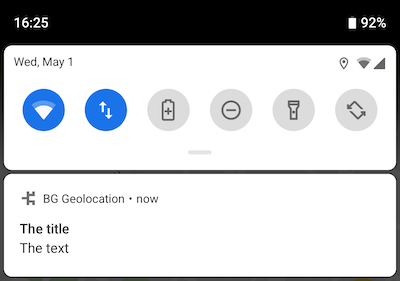
See NotificationConfig for detailed usage.
BackgroundGeolocation.ready(Config(
  app: AppConfig(
    notification: Notification(
      title: "Background tracking engaged",
      text: "My notification text"
    )
  )
));
preventSuspend
iOS only Prevents iOS from suspending the application after location services have
been disabled while running in the background. Defaults to false. Set to true to keep the app alive in the background even after iOS
disables location services. This is required for
AppConfig.heartbeatInterval to fire on iOS.
Warning
preventSuspend: true has a large and noticeable impact on battery
consumption. Use it only for specific, time-limited use cases — it is not
suitable for continuous 24/7 operation.
When the device is unplugged with the screen off, iOS still throttles heartbeat events approximately 2 minutes after entering the background. Heartbeats resume immediately when the screen turns on or any device motion is detected.
See also - AppConfig.heartbeatInterval - BackgroundGeolocation.onHeartbeat
// Subscribe to heartbeat events
BackgroundGeolocation.onHeartbeat((HeartbeatEvent event) {
  print('[onHeartbeat] ${event}');
});

// Enable preventSuspend via AppConfig
BackgroundGeolocation.ready(Config(
  app: AppConfig(
    preventSuspend: true,
    heartbeatInterval: 60.0,
  )
));
schedule
Configures a cron-like automated schedule that tells the SDK when to
start and
stop tracking.
- Times are in 24h format.
DAYuses Locale.US day numbers: Sunday = 1, Saturday = 7.- Day values may be a single day (
"1"), a comma-separated list ("2,4,6"), or a range ("2-6").
BackgroundGeolocation.ready(Config(
  app: AppConfig(
    schedule: [
      "1 17:30-21:00",     // Sunday: 5:30pm–9pm
      "2-6 09:00-17:00",   // Mon–Fri: 9am–5pm
      "2,4,6 20:00-00:00", // Mon, Wed, Fri: 8pm–midnight
      "7 10:00-19:00"      // Saturday: 10am–7pm
    ]
  )
)).then((state) {
  // Start the Scheduler
  BackgroundGeolocation.startSchedule();
});

// Listen for schedule state changes
BackgroundGeolocation.onSchedule((State state) {
  print('[onSchedule] enabled? ${state.enabled}');
});

// Later (e.g., user logout)
BackgroundGeolocation.stopSchedule();
BackgroundGeolocation.stop(); // if tracking is currently active

// Modify schedule using setConfig
BackgroundGeolocation.setConfig(Config(
  app: AppConfig(
    schedule: [
      "1-7 09:00-10:00",
      "1-7 11:00-12:00",
      "1-7 13:00-14:00",
      "1-7 15:00-16:00",
      "1-7 17:00-18:00",
      "2,4,6 19:00-22:00"
    ]
  )
));
Literal dates
A schedule entry may use a literal date range:
Or specify distinct start and stop dates:
BackgroundGeolocation.ready(Config(
  app: AppConfig(
    schedule: [
      "2018-01-01-09:00 2019-01-01-17:00" // track for 1 year
    ]
  )
));
Scheduling modes
Append geofence or location to explicitly choose a tracking mode.
BackgroundGeolocation.ready(Config(
  app: AppConfig(
    schedule: [
      "1-7 09:00-17:00 location",
      "1-7 18:00-00:00 geofence"
    ]
  )
));
iOS
- iOS cannot evaluate the schedule exactly at the configured time. Evaluation occurs only when the app is awakened.
- During a scheduled off period, iOS continues monitoring low-power
Significant Location Changes (SLC) to guarantee periodic re-evaluation,
especially when AppConfig.stopOnTerminate is
falseand the OS halts traditional Background Fetch. - Schedule evaluation occurs when the app pauses/resumes, any location is recorded (including SLC), or a Background Fetch event fires.
Android
Uses AlarmManager.setExactAndAllowWhileIdle, typically evaluating
on-the-minute.
See also - BackgroundGeolocation.startSchedule - BackgroundGeolocation.stopSchedule
Since location is the default mode, it may be omitted
BackgroundGeolocation.ready(Config(
  app: AppConfig(
    schedule: [
      "1-7 09:00-17:00 location",
      "1-7 18:00-12:00 geofence"
    ]
  )
));
scheduleUseAlarmManager
Android only Forces the Android scheduler to use AlarmManager (exact, on-the-minute)
instead of JobScheduler (inexact). Defaults to false.
BackgroundGeolocation.ready(Config(
  app: AppConfig(
    schedule: ["1-7 09:00-17:00"],
    scheduleUseAlarmManager: true
  )
));
startOnBoot
Controls whether tracking resumes automatically after the device reboots.
Defaults to false.
iOS
iOS cannot begin tracking immediately after a reboot. Similar to
AppConfig.stopOnTerminate false, the SDK waits until one of the
following occurs:
- The device exits the stationary geofence created around the last known
location.
- A system Background Fetch event fires (typically every ~15 minutes).
Android
When true, Android relaunches the SDK background service after reboot and
initial device unlock. If AppConfig.enableHeadless is also true,
tracking resumes even before the JS/UI layer starts.
See also - AppConfig.enableHeadless - AppConfig.stopOnTerminate
stopOnTerminate
Controls whether tracking stops when the application is terminated by the
user. Defaults to true.
When true, the SDK calls stop() as the app terminates. Set to false
to keep tracking alive after termination — iOS and Android behave differently
in this state.
iOS
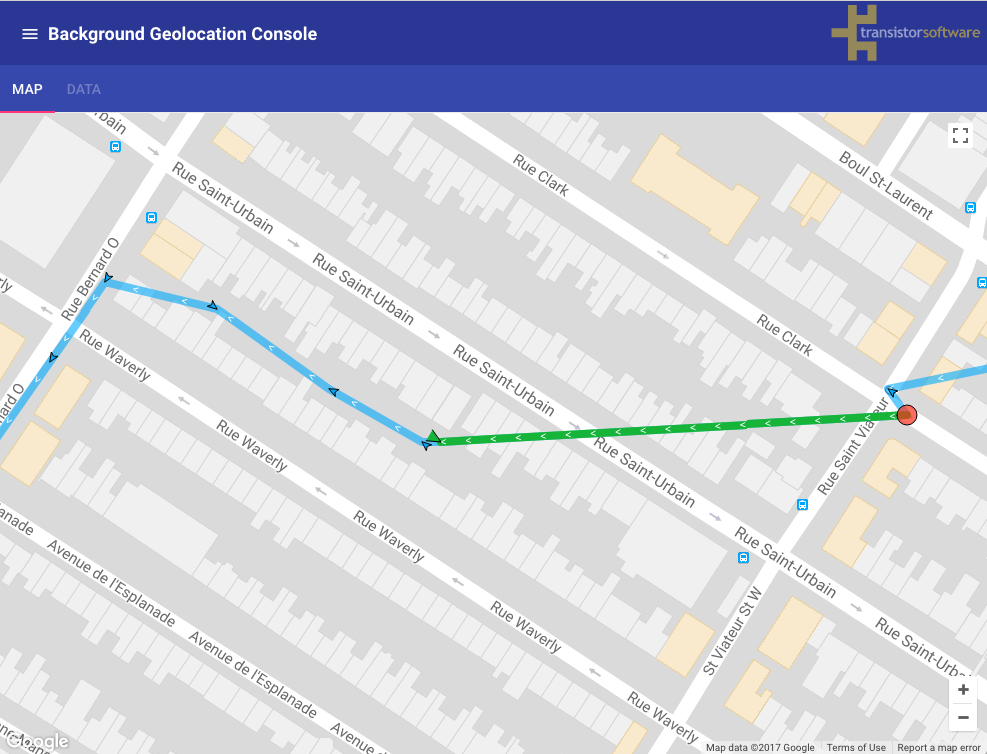
Before termination, the SDK registers a stationary geofence of GeoConfig.stationaryRadius meters around the last known position. When the device exits that geofence (~200 m), iOS fully relaunches the app in the background and tracking resumes automatically. This mechanism survives device reboot because iOS monitors geofences at the OS level.
Demo video: https://www.youtube.com/watch?v=aR6r8qV1TI8&t=214s
Android
Android does not pause tracking when the user terminates the app. The native background service continues running headlessly without the JS/UI process. Configure HttpConfig.url so the service can continue uploading locations to your server.
See also - AppConfig.enableHeadless - Android Headless Mode